Editor's note: this review was conducted by our CNET US colleagues.
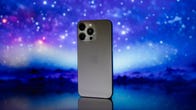
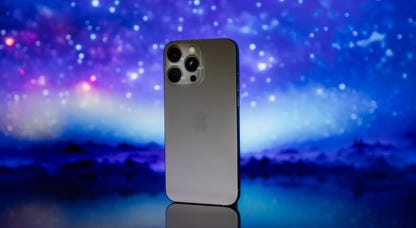
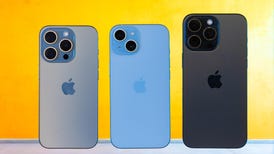
The iPhone 3GS has the same external design as the iPhone 3G. (Credit: CBSi)
Design and interface
The iPhone 3GS looks exactly like the previous model. It shares the shape and the same external controls, but the iPhone 3GS is unique in a handful of ways. You can get both memory sizes in white or black, and the iPhone 3GS display sports a fingerprint-resistant oleophobic coating that is supposed to attract fewer fingerprints and smudges. The new model shares the same dimensions as its predecessor, but it's slightly heavier, but the less than 2 grams difference is virtually unnoticeable.
The menu interface is also the same, but in the past year, as we've added apps to the Home screen, something new has begun to bother us. As intuitive and simple as the interface is, it becomes unwieldy after you get above four menu pages. Swiping through multiple pages is tedious; and it's rather painful to drag applications from page to page if you're an organisational freak. We hate that there's no way to categorise related apps into folders, such as one for news, another for social networking, and so on. Not only would this cut down on menu pages, but you'd also be able to find your app faster. And while we're at it, how about letting us delete some of the native apps we never use?
Features
Since the iPhone 3GS inherits many of the features from the previous model, we'll concentrate on what's different on this device. If you need a refresher on such elements as the clock, YouTube, weather, iPod player, calculator and email, please see our iPhone 3G review. We'll start off with the new features that only the iPhone 3GS will offer.
The iPhone 3GS' camera still lacks a flash. (Credit: CBSi)
Camera
Until now, the iPhone's camera has been good, but far from great, with decent photo quality, but no editing features. Apple didn't include options such as white balance, a digital zoom, or a self-timer that come standard on many basic VGA camera phones. The minimalist shooter bothered us so much that we began to worry if Apple was leading a new trend of "dumbing down" mobile phone cameras.
The iPhone 3GS puts some of those fears to rest. Apple boosted the camera's resolution to 3 megapixels and added a new "Tap to Focus" feature. As you point the lens toward your subject, a small box appears on the centre of the display. Tapping that square focuses the camera automatically on that point and adjusts the white balance, colour, contrast and exposure accordingly. If you'd rather focus on the edge of your shot, just tap the display at your chosen point and the square moves with you. If you don't tap anywhere, the camera will focus the entire frame.
Tap to Focus performs well. For example, if we photographed a book cover sitting on a desk, we were able to get a clear reading on the book's title. If we shifted the focus away from the book, the title became somewhat blurry. Alternatively, if we focused on the brightest part of an image, the entire picture would appear brighter. But if we focused on the darkest part of any image, the photo would darken accordingly. The iPhone still doesn't come with a flash, though, so don't expect miracles.
The iPhone 3GS' indoor shots were just average. (Credit: CBSi)
On the other hand, the new automatic macro setting didn't appear to make much of a difference. Close-up shots looked slightly better on the iPhone 3GS than they did on the iPhone 3G, but we couldn't tell when the macro focus was working and when it wasn't. As with the autofocus feature, the macro setting is a welcome addition, but we'd prefer to have more control over it. In other words, the iPhone 3GS' camera is smarter than those on the earlier iPhones, but the camera, rather than the user, still runs the show.
On the whole, the iPhone 3GS' photo quality looks better than the 3G camera's quality, but it depends on the shot. Outdoor shots and photos taken in natural light looked less blurry in our tests, with brighter colours. Photos taken during cloudy days were less likely to be blown out, and photos in low-light conditions looked brighter and had less of an orange tint. Indoor shots without natural light showed little change, however. The iPhone's camera is not optimised for fluorescent light.
The video recorder has a simple interface and you can edit clips right on the display. (Credit: CBSi)
Video recording
The iPhone 3GS is the first iPhone to offer video recording, another feature other phones have offered for years. Apple makes up for some lost time by offering an easy-to-use video-editing option right on the phone.
Controls for video shooting work just like the still camera's controls, and you can use the Tap to Focus feature here, as well. The quality is just VGA, but the camera shoots at 30 frames per second, so while colours look muted and some videos appear washed out, the iPhone 3G S did better at handling movement than most mobile phone cameras. After you're done recording, you can send your clip in an email or upload it directly to your YouTube account. We were able to upload to YouTube and send a video from our synced IMAP4 Exchange account, but when we tried to send a video from a synced Yahoo POP3 account, an error occurred. We're checking with Apple on the discrepancy and will report back.
The phone's video-editing tool is utterly intuitive and fun to use. After loading a previously shot video, you'll see it displayed frame by frame in a linear format along the top of the touchscreen. Using your finger, you can slide the cursor to any point in the video and start playing from there. If you care to edit, just touch either end of the border that surrounds your video. When the border turns yellow, you can shorten the clip by dragging either end toward your desired cut-off point (the image on the display will conveniently change as you move along). Once you've made your edits, just hit the "Trim" control.
We liked the video-editing feature a lot, but it's worth noting a couple of small complaints. First off, when you trim a clip, the edited version replaces your original video, rather than saves it as a new file. Also, you can trim only in a linear format — meaning you can't cut out something in the middle and stitch the remaining two ends of the video together.
We also like a new feature that allows you to quickly open a photo or video that you just shot. After taking your snap or video, a small thumbnail will appear on the bottom of the viewfinder next to the shutter control. Tapping that thumbnail takes you to the photo gallery page, from where you can view your work or send it on to a friend.


Add Your Review 168