25-inch LG Cinema 3D Monitor: first impressions and setting up
November 22nd, 2011
I was very excited when the LG Cinema 3D Monitor arrived, I was looking forward to watching 3D movies and playing games, and the cat was looking forward to swatting a few 3D fish! Without delay I opened up the box and started setting it up...
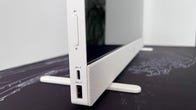
The Stand Base for the monitor is quite sturdy. However, the Stand Body, which connects the Stand Base to the monitor, is not and allows the monitor to wobble quite easily. The monitor can tilt up and down, but not left and right. It is extremely lightweight and apart from the Stand Base, is well built. The monitor is glossy black in colour, which makes it a fluff magnet, especially if you have a cat.
The monitor comes with three instructional CDs. One has the user manual and driver install (for Windows), one has TriDef 3D installer software (for Windows) and the third is a compilation of 3D videos (for Windows). The monitor does not come equipped for Mac users, which is a pity because if you own a Mac (as I do), you will need to source your own 3D content and cannot use the TriDef 3D software provided, as according to the manual, it appears to be quite useful.


The monitor can connect via an HDMI port, D-Sub port (VGA) and a DVI-D port. PCs will normally have the D-Sub or DVI-D port. If you own a Mac other than a Mac Pro or Mac Mini, you'll need to purchase a Mini DisplayPort adapter that connect to an HDMI, D-Sub or DVI-D port. The Mac Mini has an HDMI port and the Mac Pro has several ports available. So far I have done initial testing on a Mac Mini and an Xbox both via the HDMI port.